Delegate your day.
Search email by meaning
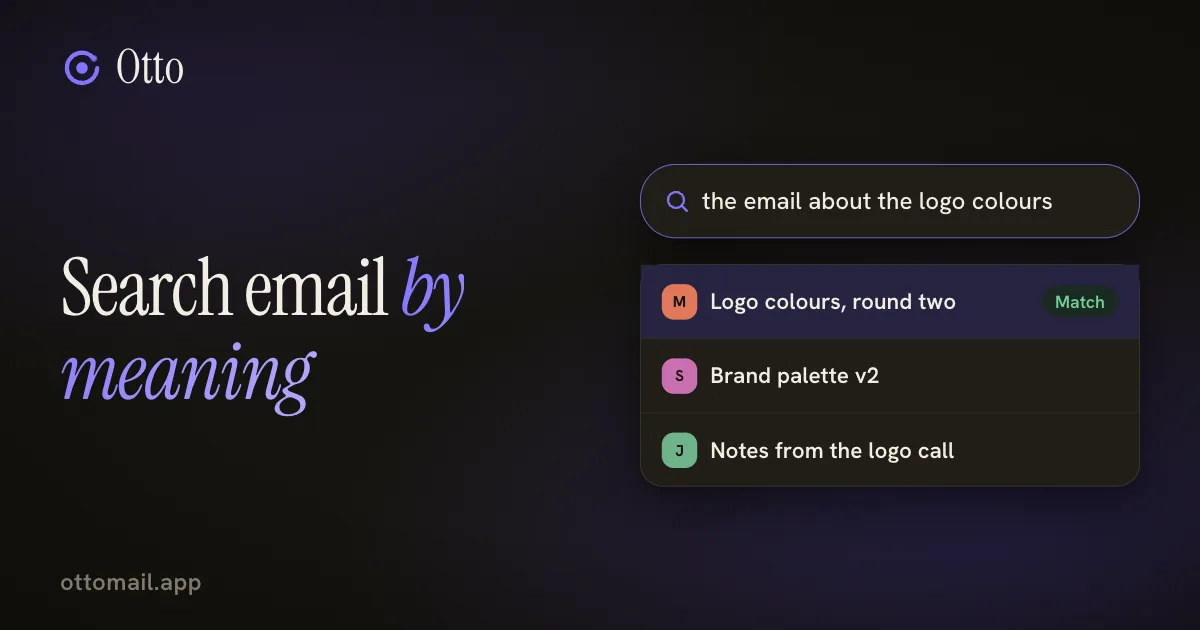
Most searches fail because you're searching for words you never knew. Describe the email instead.
You just approve.
The short version
- Press / and describe what you're after. Otto searches by meaning, so the exact words don't have to match.
- Exact filters still work: from:, is:unread, date ranges and attachments. Mix them with a description.
- Meaning-based results are candidates, not answers. Open the message to verify before you rely on it.
- Pin a search you repeat as a Smart View in the sidebar.
You know it exists, and that's all you know
Somebody sent you a quote, or a file, or an answer, and you need it now. You don't remember the subject. You don't remember whether it came as an attachment or in the body. You're not even sure which month it was.
Ordinary search fails here for a simple reason. It matches words, and you don't have the words. You try the sender's name, then "quote", then "invoice", then give up and scroll.
What you do have is the gist. It was about the colour of a logo. It was from the agency, in spring. You replied that it looked fine. That's enough to find it, if the search understands meaning.
Two kinds of search in one box
Press / and the search box takes focus. From there you have two routes.
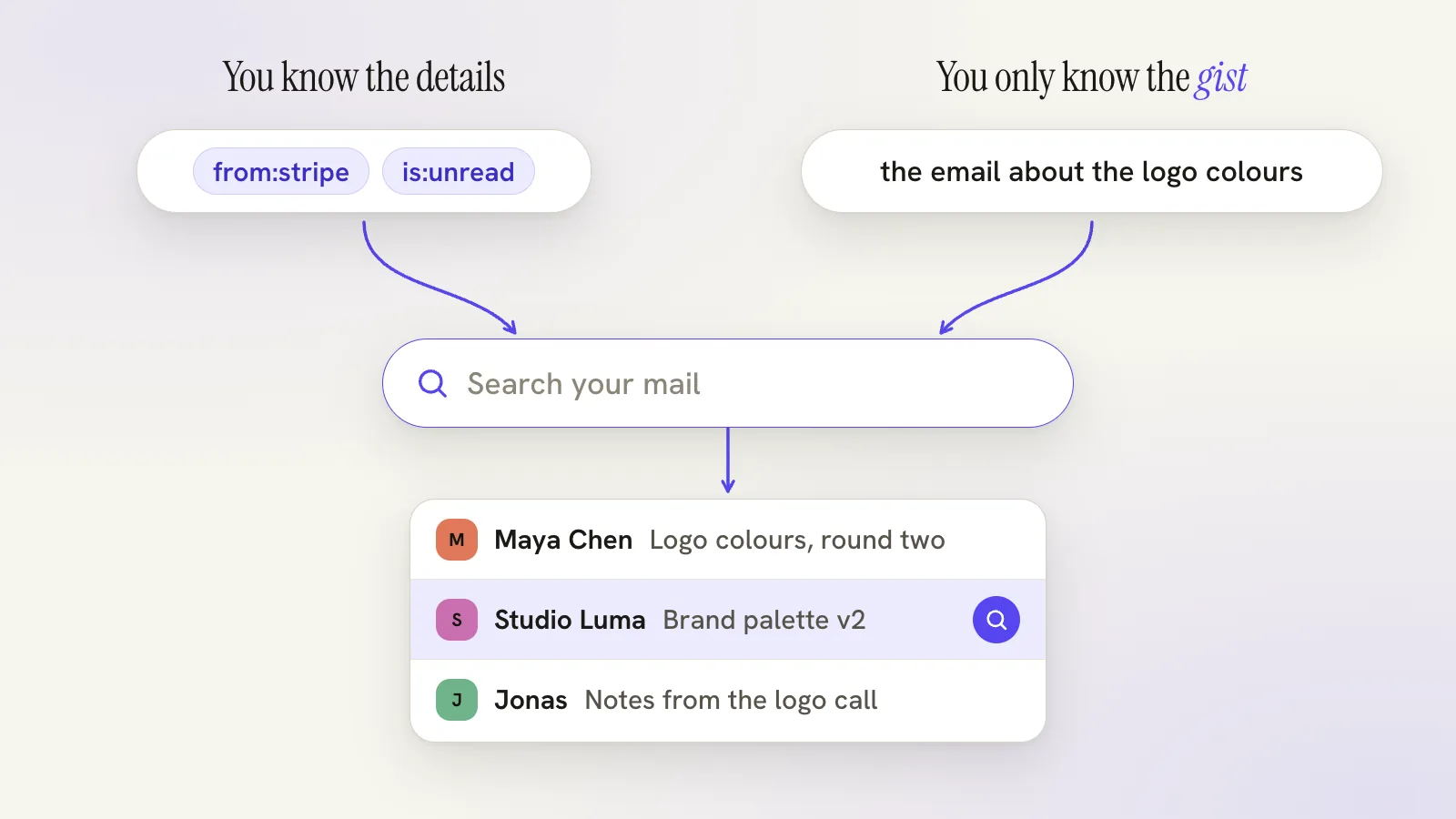
The exact route works the way Gmail search does: from:stripe is:unread, date ranges, attachments. Use it when you know a hard fact, like who sent it or roughly when.
The meaning route is for everything else. Describe what you're after in plain language and Otto's semantic search finds it by what the email is about, even when you don't remember the words it used. You can also ask the assistant directly: "find the contract legal sent in March".
Search is free on every plan. Meaning-based search is an AI feature, so it uses your AI allowance and the one-time AI agreement, while exact search and the rest of core mail keep working without it.
A walkthrough: the logo email
Say you need something Maya at Studio Luma wrote last spring. You remember it was about logo colours and that you answered "fine by me". That's all.
You press ⌘J and type: "Find the email where Maya from Studio Luma talked about the logo colours, probably last spring."
Otto searches by meaning and brings back candidates with the threads attached. Nothing has to match word for word. A thread that says "palette" and "brand mark" can still surface for "logo colours".
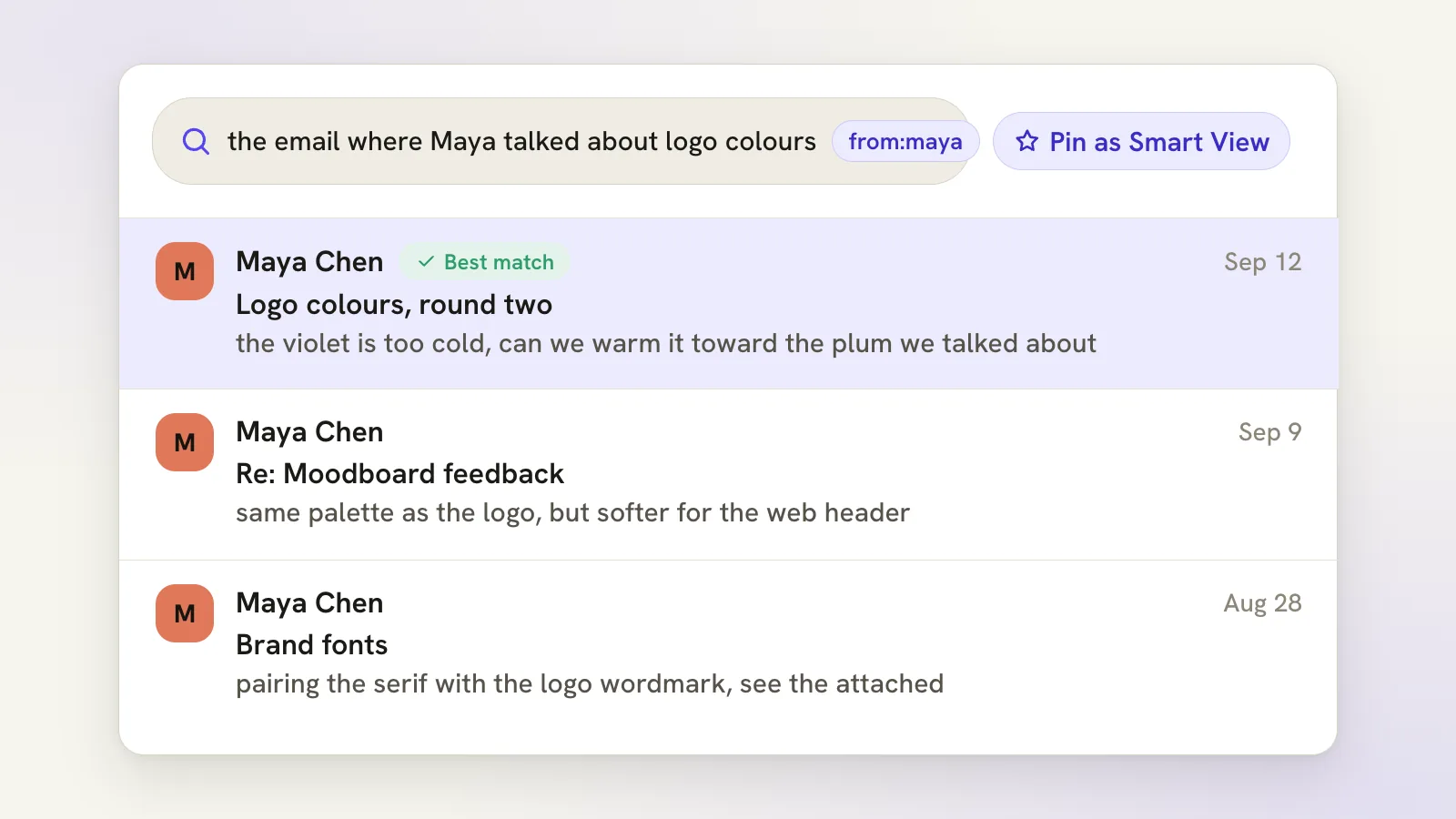
Now check. Open the top result and read it, because the first match is a good candidate and not a guarantee. If it's the wrong thread, narrow the search instead of starting again. Add from:maya, or ask for the same thing with a date range. The description does the guessing and the filter does the pruning.
Once you have the right thread, you can ask Otto about it directly: what did she ask for, what did I agree to. The answer comes from the message you're looking at, so you're not reading the whole thread to rebuild the context.
Describe first, verify second. Opening the thread and reading the line you were looking for takes ten seconds, and it stops a near miss from turning into a wrong quote.
Mix the two on purpose, or search by person
The fastest searches usually use both.
If you know one hard fact, put it in a filter and describe the rest. A sender plus a description narrows a very large mailbox quickly. A date range plus a description helps when the topic is vague but the season isn't.
If you know nothing hard, start with the description and add a filter once you can see what kind of results are coming back.
When you search for the same thing every week, say unread mail from your finance contact, pin it as a Smart View in the sidebar. A Smart View saves the search so it's one click next time. It doesn't move any mail. You can also ask Otto to create one: "create a saved view for unread mail from finance".
Searching by person is a third route. Where relationship briefs are enabled on Plus, there's a way in when what you remember is a person and not a topic. Open Work, choose Relationships and enter an exact email address or a company domain. Otto reads recent incoming and sent mail for that address and links each result to the message.
It's an on-demand read, not a standing dossier. Each request covers a limited number of messages, so use Continue older mail when the coverage note says more may remain. Snippets that look like a decision are labelled possible, because a short preview can't prove what was agreed. Open the message to check the wording.
What to keep in mind
Meaning-based search finds likely matches. It can bring back a near miss, and it can miss an email that's phrased very differently from your description. Open every result and confirm it, especially before you quote it to someone.
Searching older mail can also still go through your provider, and Gmail and Outlook don't behave identically. Folders, supported filters and search-wide actions follow each provider's capabilities.
If you act on a search, remember that the number of messages loaded on screen is a preview, not the size of the whole search. A bulk action over a search needs its scope read before you approve it.
Notes work the same way on Pro, where smart search finds notes by meaning as well as by keyword. Research is a different thing: it uses web sources, not your private mailbox.
Try it with something you lost
Pick an email you couldn't find last month. Describe it instead of guessing its words, open the result, and see how close the first answer came.
Free to start. The search guide covers filters and Smart Views, what Otto stores explains how the inbox index relates to your provider, or open Otto and search your own mail.
Questions, answered
Do I still need exact search operators?
They're there for when you know a hard fact such as the sender or a date range. Otto's search handles both, and you can combine a description with a filter.
Does meaning-based search use AI?
Yes. It's an AI feature, so it uses your AI allowance and the one-time AI agreement. Exact search and the rest of core mail keep working without it.
Does search work the same on Gmail and Outlook?
Mostly, but supported filters and search-wide actions follow each provider's capabilities. If something isn't supported, Otto says so and doesn't pretend it ran.
Try your next step in Otto
Core mail, calendar and tasks are free. AI has an allowance.
Open Otto