Delegate your day.
Put your weekly email chores on a schedule
If you do the same email chore every Friday, you're the cron job. Hand it to a schedule and read the result.
You just approve.
The short version
- Routines (automations) run recurring briefs and digests on a schedule. Each result lands in Activity and, if you choose, in email, push or a chat app.
- Pick the schedule from the friendly picker and read the line under it that spells out the next run before you save. Cron is there if you want it.
- Match the schedule to when you sit down to decide, not to how often mail arrives.
- Review a sample before you activate, and check the first runs. Free has the morning brief plus 3 routines, daily. Plus runs hourly, Pro every 15 minutes.
Do the same thing twice, then schedule it
Most inbox work isn't clever. It's the same pass at the same time every week: skim what came in overnight, check what's still waiting on someone, archive the newsletters nobody read.
Doing that by hand is fine. Doing it on a schedule, without you, is better, as long as you stay in charge of what it does. That's what Otto's recurring work is for.
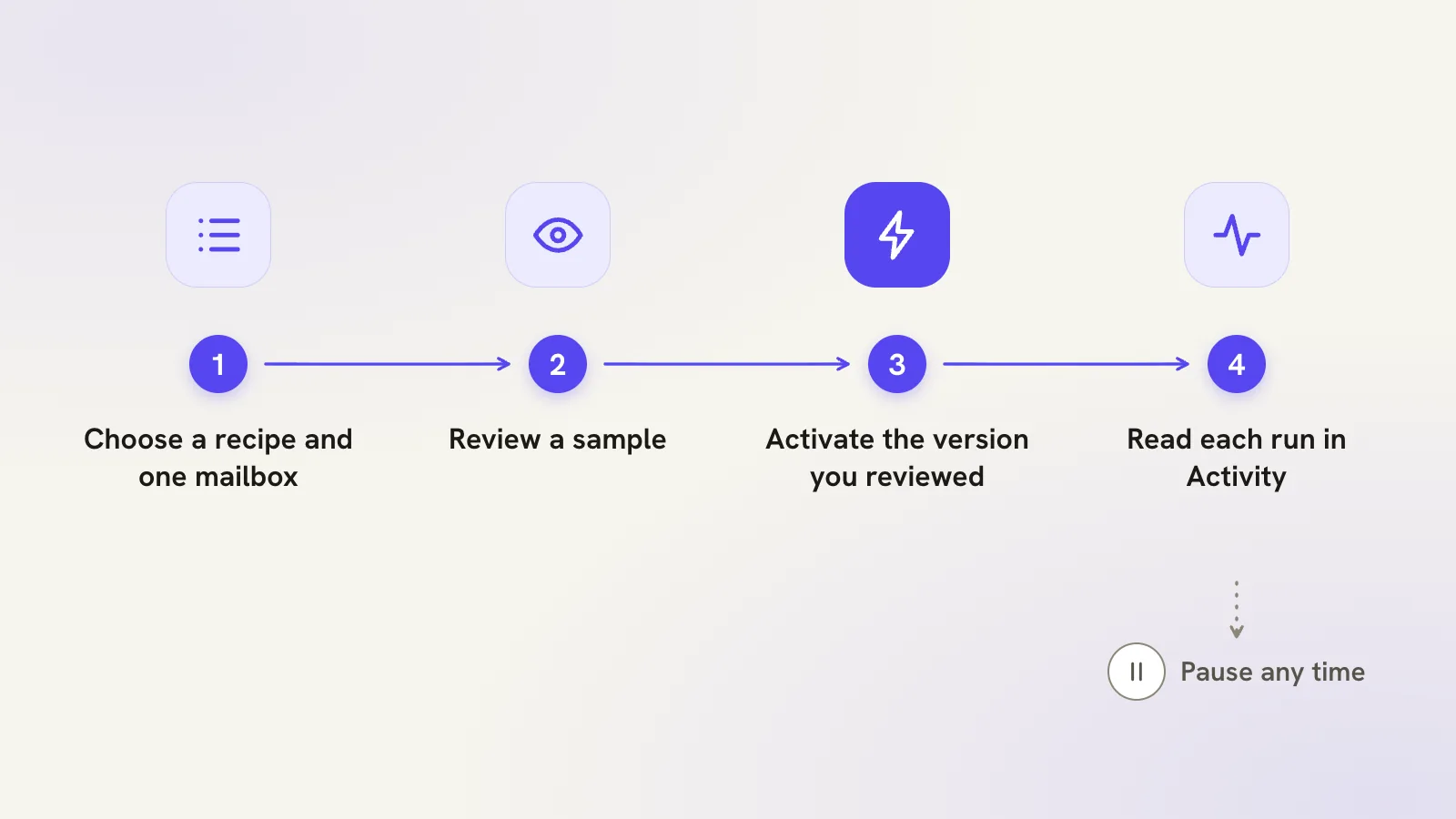
Routines, also called automations, are how Otto does it. A routine prepares a brief or digest from your mail, calendar and tasks on a schedule you set: a morning roundup, an inbox digest, a follow-up check, the important unread since the last run, or an agenda. You choose the mailbox, the recipe and the schedule, review a sample, and then activate the version you reviewed. Each run lands in Activity, and you can also send it to email, push or a connected chat app.
Scheduled cleanups sit next to them. A cleanup is a saved search plus an action, such as archiving old newsletters, that runs hourly, daily or weekly. Open both from Settings → Automations, or press G then R.
Filters and one-off rules are free, and so is a start on routines: Free has the morning brief plus 3 routines of your own, daily. Plus runs routines hourly, delivers to a chat app and can start one when something happens, such as a matching email arriving or a meeting about to start. Pro runs every 15 minutes.
How to pick a schedule
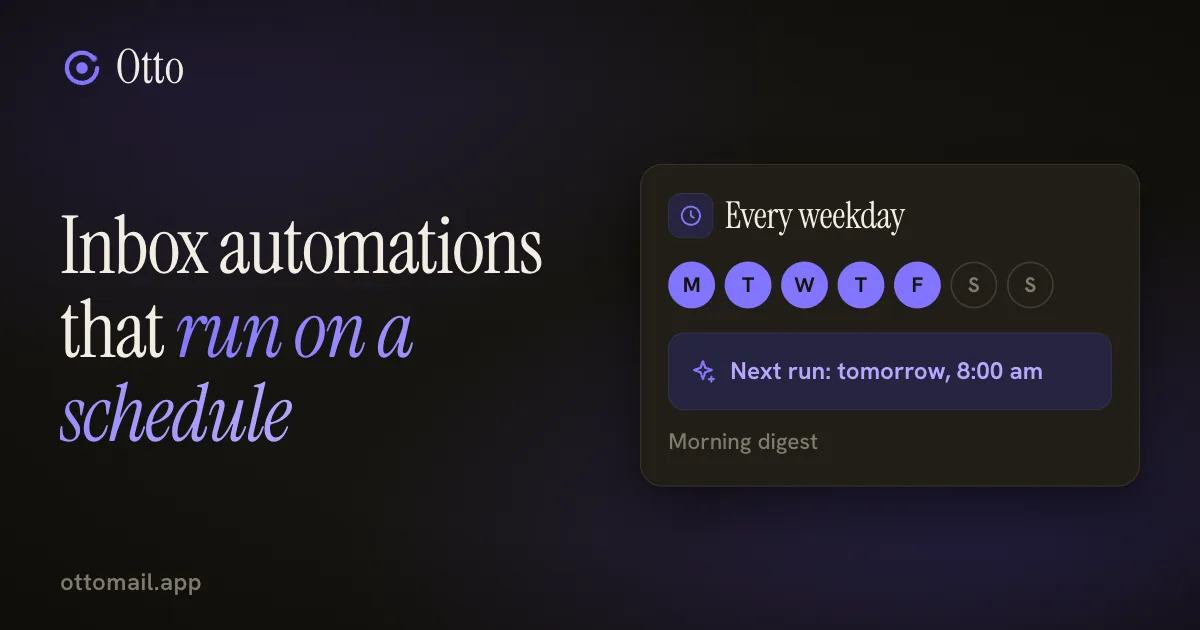
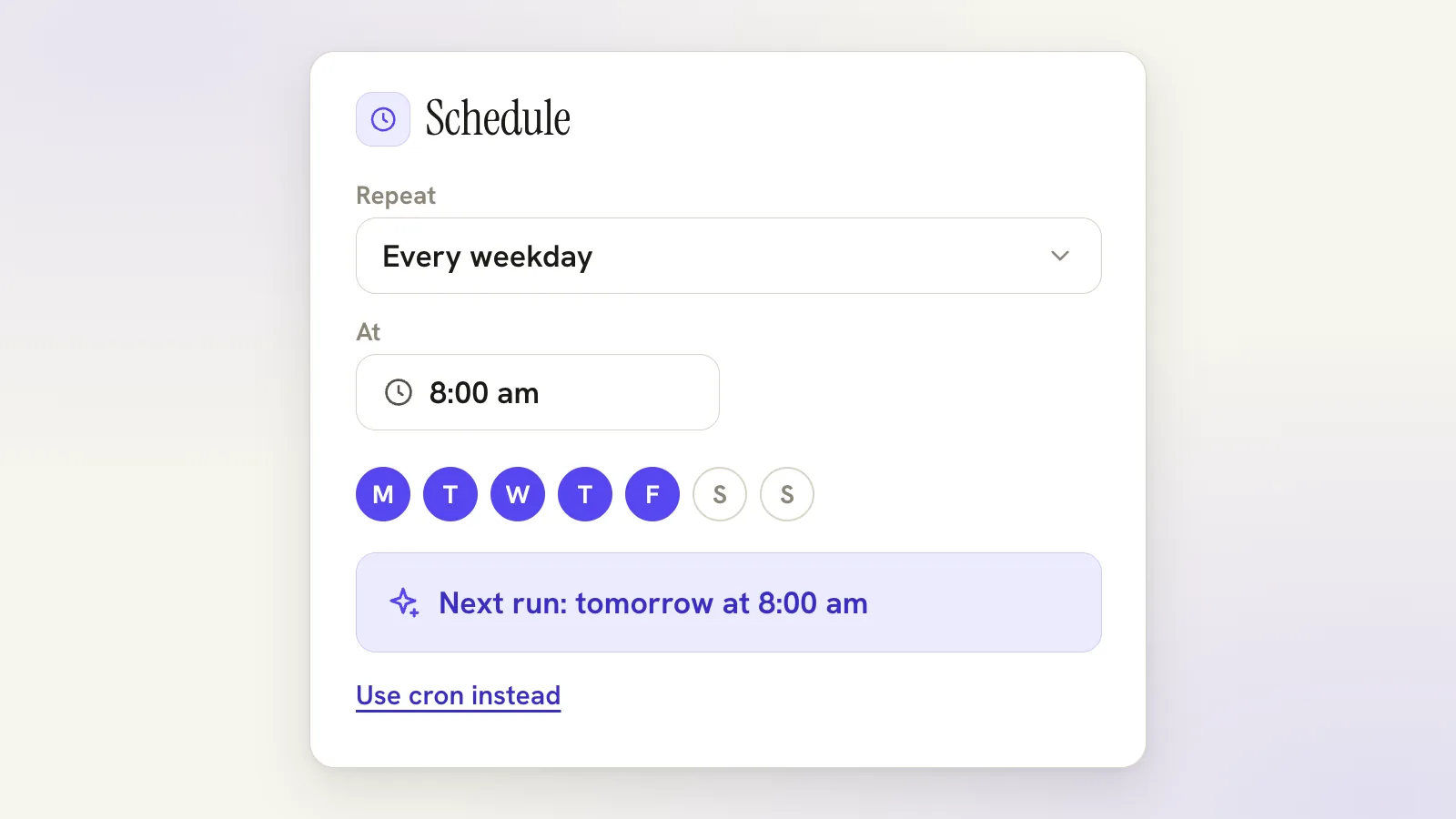
The friendly picker lets you write the schedule the way you'd say it, "every weekday at 8am", and puts a sentence underneath with the next run. If the sentence isn't what you meant, you see that before you save. Cron is there when you want full control.
A few things make the choice easier.
Match the time to when you sit down to decide, not when mail arrives. A morning brief is useful at 8am if you start work at 8:30. At 3am it's an unread notification.
Match the cadence to the decision. A daily brief for what needs you today. A weekly roundup, say Friday afternoon, for what you missed and what's still open. A weekly cleanup for old newsletters, because nobody needs that decided daily.
Start with one. Add a second only once the first has earned its place. Three brand-new routines is how you end up with three things to ignore.
Check the time zone, too. A schedule is only right in the zone you meant.
A walkthrough: three small schedules
Say you want three things.
First, a weekday morning brief. You open the routine picker, choose a morning mail roundup and your work mailbox, and set every weekday at 8:00. Otto shows a sample built from your real mail, with what it found, what it left out and whether the result is partial. You read it. It lists the Studio Luma thread about invoice 2041 near the top and skips a newsletter. Good. You activate it.
Second, a Friday roundup. A weekly recipe on Friday at 4:30 collects what's still open before you close the laptop.
Third, a weekly cleanup. You set it to archive newsletters older than three months and run it weekly. Run it once now, then read the result in Activity before you trust the cadence.
In the Automations panel, press R to run the focused one now, Enter to pause or resume it, and N to add another. J and K move between them.
Look at what you didn't do. You didn't write a rule for every sender, and you didn't decide what mattered ahead of time. You chose when, and read the sample to confirm the what. If after a fortnight you never open the Friday roundup, delete it. A routine you ignore is clutter with a schedule.
Read the first few runs, and what to do when one goes missing
A routine you never look at is a quiet risk. Open Activity after the first run and read what it did.
Each run shows what it found, what it left out and whether the result is partial. A partial result isn't a failure, but you'll want to know about it. If the brief keeps missing things you care about, change the recipe or the mailbox, not the time.
Two conditions cut the noise. A routine can look only at mail that arrived since its last run, and it can skip items it already showed you. When a run has nothing to report, you still get one short line, "Nothing new since" the last run, at low priority, so push stays quiet. That's how you tell an empty morning from a broken one.
A routine reads and reports. It doesn't send. If a prepared reply is offered, it's for you to read, and a sample doesn't deliver anything or authorize later outside actions.
Routines can stop for ordinary reasons. A changed mailbox permission, a plan change or an AI setting can all prevent a future run. If a chat app was disconnected, delivery to it is skipped, Otto tells you once, and it picks up again when you reconnect. A missed digest isn't sent late, but you can ask for the latest one. If a brief doesn't arrive, check the routine's history and the mailbox it points at before you touch the schedule.
Pause a routine from the same screen when it stops being useful. Pausing is cheap, and a paused routine you can restart beats one you resent.
Where the result goes
By default a run lands in Otto. You can add email and push, and on Plus and Pro a connected chat app: Telegram, Slack and Discord work today, while WhatsApp, Google Chat and Microsoft Teams are coming soon. A brief that arrives in Slack or Telegram is numbered, so you can answer it in place: "archive 1, 3", "mark read", or "reply to #2". Otto drafts the reply and you approve it. Say "brief today" in a linked chat to get the latest brief on demand. The routines guide has the details.
What automation won't do
It doesn't replace filters. If you can describe a rule by who sent it or what it contains, a filter is simpler and free. Use routines for work that needs summarizing or judgement, and cleanups for mail you want tidied on a calendar.
It doesn't let you skip your own review. The tedious half arrives prepared, and you decide in a minute what used to take twenty.
And it doesn't change how your mail sits at Gmail or Outlook unless you ask it to. A digest is a summary in Activity. A cleanup is a bulk change you chose, on a calendar you chose, with the result visible afterwards.
Try one schedule this week
Pick the pass you repeat most, set it up with a sample, and give it a week. Keep it if the brief earns its place.
Free to start, with the morning brief and 3 routines included. The routines guide covers recipes, schedules and samples, or open Otto and begin with one. For what to do with the brief once it arrives, see a 10-minute morning email routine.
Questions, answered
Will a routine send email on my behalf?
No. A routine reads your mail, calendar and tasks and reports back. It never sends on its own, and anything that would send, delete or change mail still needs your approval. If a routine arrives in a chat app, you can reply there with something like "reply to #2". Otto drafts the reply, and you still approve it before it goes.
What if a scheduled brief doesn't show up?
Open the routine and check its last delivery. If a chat app was disconnected, the run says so, Otto posts one notice in the app, and delivery resumes on its own once you reconnect. Otherwise check the mailbox the routine points at, because a changed permission, plan or AI setting can stop a future run. A run with nothing to report still sends a one-line "Nothing new" note, so silence usually means a problem.
Which plan do I need for scheduled routines?
Free includes the morning brief and 3 routines of your own, daily. Plus raises the count to 10, runs hourly and adds chat delivery and event triggers. Pro allows 50 routines, runs every 15 minutes and delivers to more chat apps. Filters and one-off rules are free on every plan.
Try your next step in Otto
Core mail, calendar and tasks are free. AI has an allowance.
Open Otto