Delegate your day.
Turn emails into tasks
"I'll get that to you Friday." You wrote it in an email on Tuesday and nothing else knows. Move the promise out of the thread.
You just approve.
The short version
- Ask Otto to extract the tasks from an email, add one by hand, or pull action items out of a note.
- Tasks sync both ways with Google Tasks or Microsoft To Do, depending on the account you have selected.
- A task is your work. A follow-up reminder is for work you are waiting on from someone else.
- Check the titles and due dates Otto writes. They are a draft of your intent.
Some emails are tasks in disguise
"Can you send the revised quote by Thursday?" "When you get a minute, could you ask Jonas for the logo files?" Neither of those is a message you answer. Each one is a piece of work with a deadline, and the only record of it is a line in somebody else's email.
Leave it there and it turns into a quiet kind of debt. The thread sits in your inbox, the deadline is visible only to you, and a week later you are re-reading it to find out what you promised. Meanwhile your real to-do list, the one you actually check, has no idea.
Tasks in Otto sync both ways with Google Tasks or Microsoft To Do, depending on the account you have selected. Add a task in Otto and it appears in the app on your phone. Tick it off there and it is ticked off here.
That matters because it means there is no second list to maintain. You are not importing anything into a new system, you are writing to the one you already use.
Open Tasks with G then K, or from the rail. Free covers tasks on one connected account.
Three ways in
You can capture a task three ways, and none of them need you to retype anything.
Ask. With the email open, press ⌘J and say what you want: "add a task to follow up with the vendor", or "extract the tasks from this email". Otto reads the message and pulls out the action items.
By hand. Add a to-do the ordinary way when it is quicker than asking.
From a note. If you keep meeting notes in Otto, choose Extract action items on a note and the items become tasks.
When a task needs a time of its own, promote it to an event on your calendar instead of leaving it as a floating date. A task that says "Thursday" is a wish. A task with a calendar slot is a plan.
A walkthrough: one email, two tasks
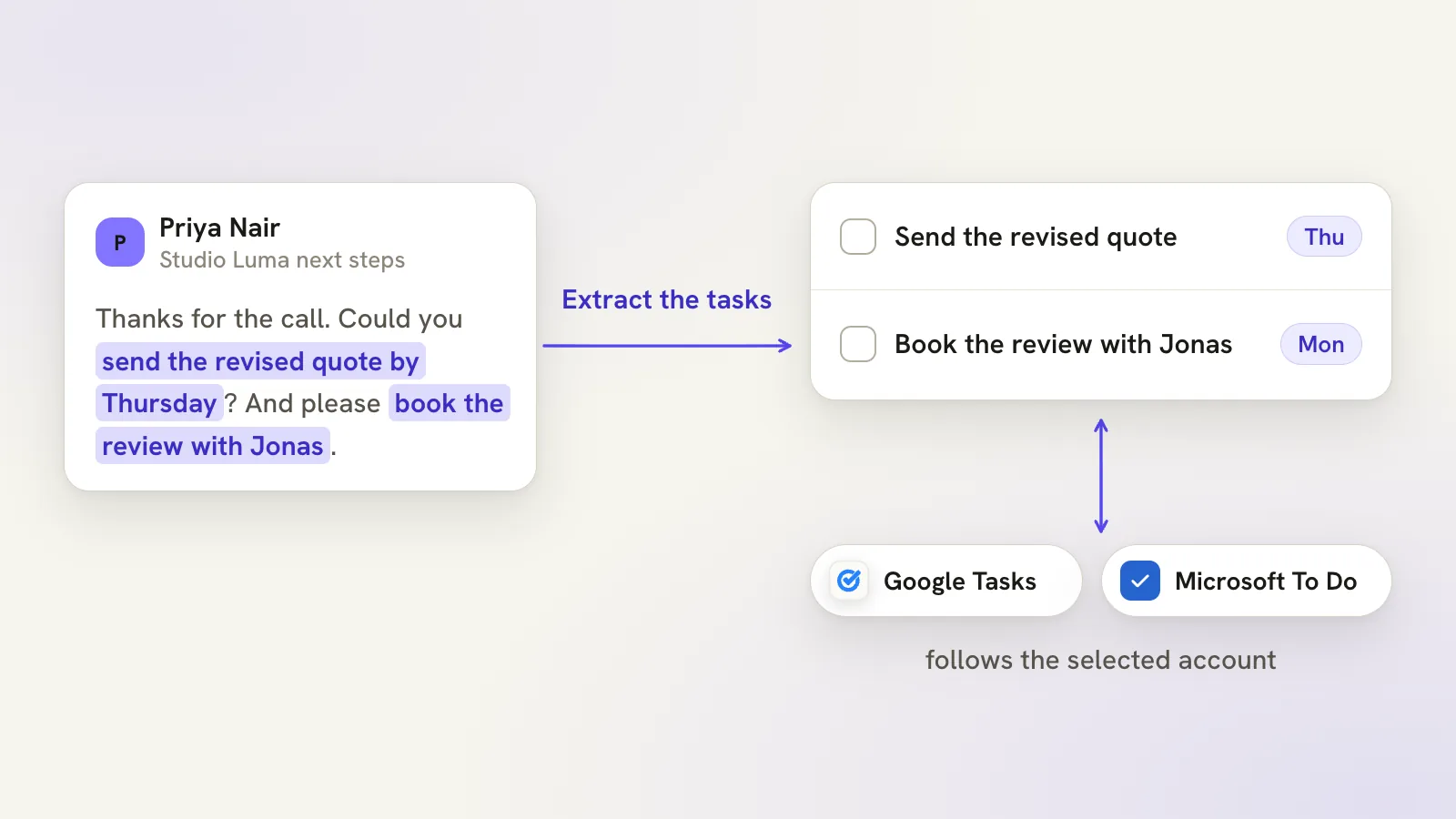
Say Priya writes: "Can you send the revised quote for Studio Luma by Thursday? And please ask Jonas for the logo files before then."
That is two jobs. You open the thread, press ⌘J and type: "Extract the tasks from this email."
Otto reads it and adds the work to the task list of the account you have selected. Open Tasks and look at what landed. This is the step to take seriously. The titles and dates are Otto's reading of an email, not a record of what you decided. If it wrote "Send quote" and you want "Send revised quote to Studio Luma", change it. If Thursday landed on the wrong Thursday, fix the date. It takes a few seconds, and it is the difference between a list you trust and one you work around.
If you work with two providers, notice which account was selected. A task created under your work account is in the work list, not the personal one.
Then open Google Tasks or Microsoft To Do on your phone. The two items are there, and when you tick one off in that app, it clears in Otto as well. That round trip is the whole point: the email has done its job and the work lives where you plan your day.
Waiting is different from doing
Not everything in your inbox is yours to do. Some of it is somebody else's job, and what you need is a nudge if they do not do it.
That is a follow-up, not a task. Say "remind me if they do not reply by Friday" on the thread. If a reply arrives, the reminder cancels itself. If nothing does, the thread comes back to you on Friday. Snoozed threads and follow-ups collect under Scheduled, which you can open with G then Q.
Where Work is enabled, there is a third kind for promises. A commitment keeps the quoted sentence it came from, an owner and a due date, and sorts into Waiting on me, Waiting on others and Unassigned. It is a Plus feature, and suggestions do not count as accepted work until you review the quote. The commitments guide explains the difference.
Working the list, and where it stops
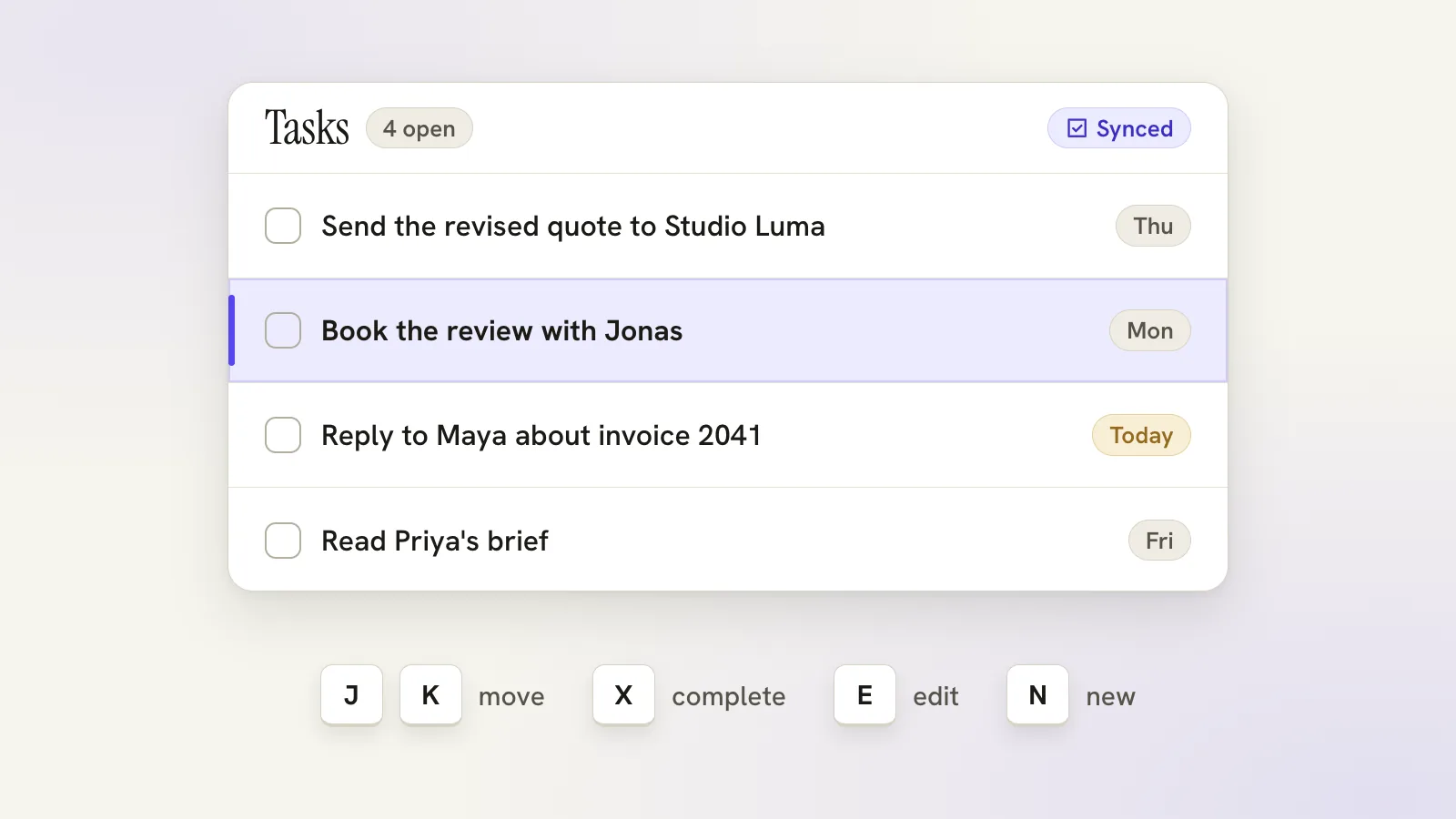
Once a list has more than five items you will want to move through it without the mouse. In the Tasks panel, J and K move the cursor, X or Enter completes or reopens, E edits, # deletes and N adds a new one.
For a pile, select several tasks and complete, reopen, reschedule, clear the due date or delete them together. Choose Ask Otto to review the same selection in chat. One AI confirmation covers at most 200 tasks from a single list, and bigger selections need another round. The selection Otto sees expires after 15 minutes, so if a confirmation says it has expired, select the items again.
Otto does not replace a project tool. It is the bridge between the inbox and the list you already keep, and Google Tasks and Microsoft To Do keep their own limits and features.
Bulk task changes run while the app is open rather than as background jobs, and failed or unconfirmed items stay in the list for you to review and retry. As with anything the assistant does, read what it proposes before you rely on it.
Start with one email
Take the next email that says "can you" and turn it into a task. Check the title, the date and the list. Then tick it off from your phone and watch it clear here.
Free to start. The tasks guide covers every control, or open Otto and try it on a real thread. If your tasks keep coming from meetings, schedule meetings from email is the companion read.
Questions, answered
Which task apps does Otto sync with?
Google Tasks for a Google account and Microsoft To Do for a Microsoft account. The selected account decides, and the sync runs both ways.
Do I need the AI to use tasks?
No. You can add, tick off, reschedule and delete tasks by hand. The assistant is an extra way to capture them from an email.
Can a task become a calendar event?
Yes. When a task needs a time of its own, promote it to an event on your calendar.
Try your next step in Otto
Core mail, calendar and tasks are free. AI has an allowance.
Open Otto