Delegate your day.
Eight keys to clear an inbox
You do not need forty shortcuts. You need about eight, and a pass that never asks your hand to leave the keyboard.
You just approve.
The short version
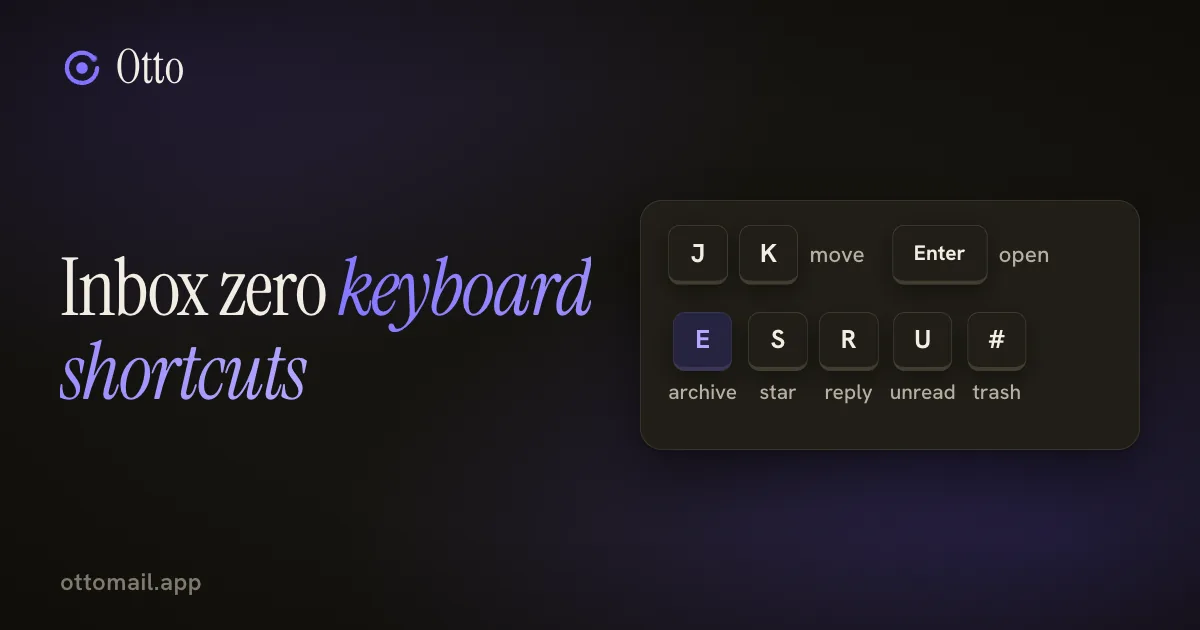
- Move with J and K, open with Enter or O, then act with one key: E archive, S star, R reply, U read, # trash.
- Jump with G then a letter: I inbox, S starred, T sent, D drafts, A all mail.
- Press ⌘/ or ? any time for the full cheat sheet. ⌘K opens the command palette and ⌘J the assistant.
- Keyboard shortcuts are for desktop browsers. They have no meaning on a phone.
Eight keys do most of the work
A cheat sheet with sixty shortcuts is a reference, not a habit. The habit is small: a handful of keys you press without thinking, until the inbox stops being a place you scroll and becomes a list you work down.
This is that handful, taken from Otto's real keymap, plus the keys worth adding once those are automatic.
One note first. Keyboard shortcuts are for desktop browsers. In the cheat sheet, ⌘ means Ctrl on Windows and Linux. On a phone there is nothing to press, so you tap, or ask the assistant.
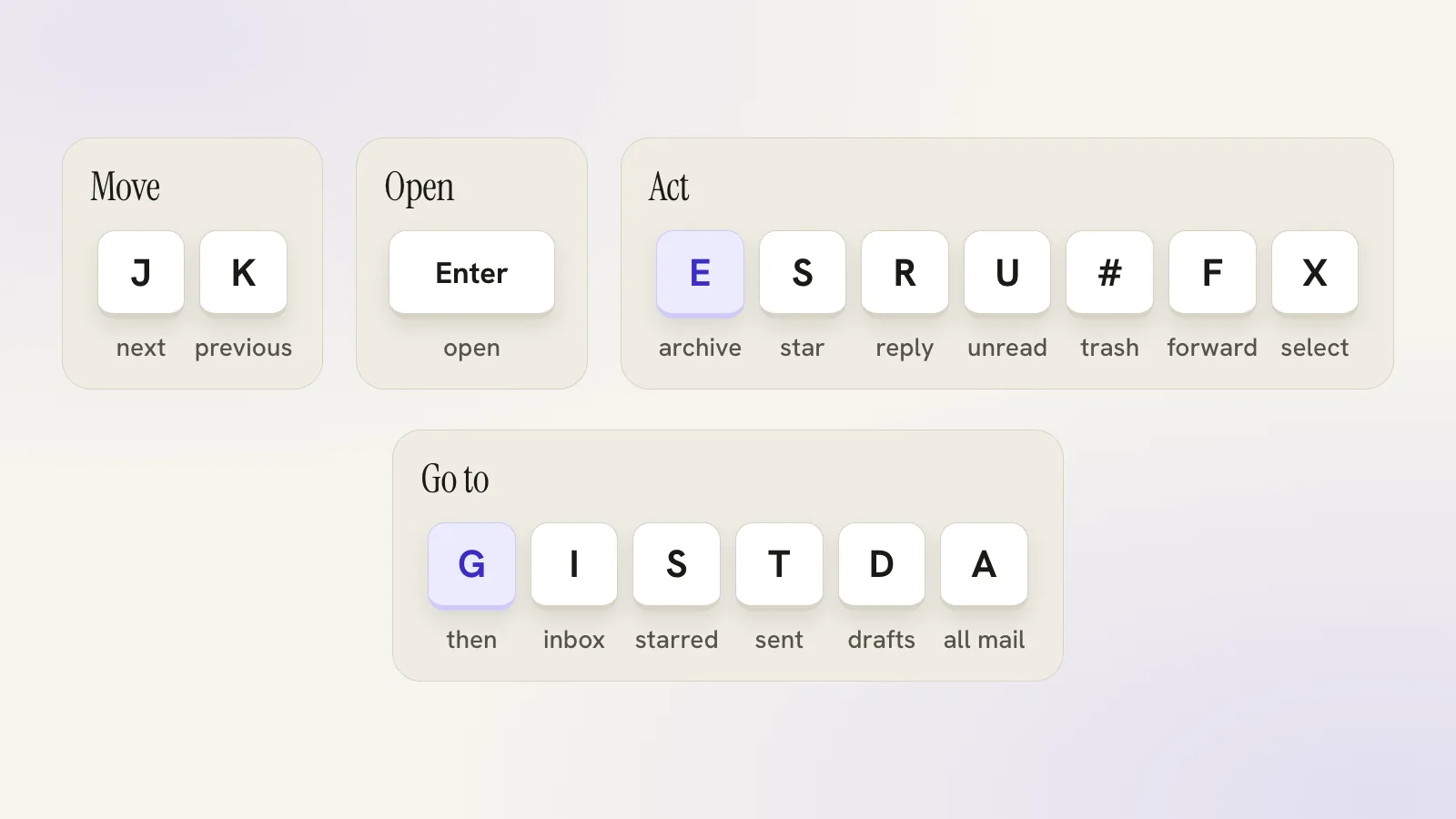
Now the core: move, open, act. Move down the list with J, up with K. The arrow keys do the same.
Open an email with Enter, or O. With a message open, single keys act on it, so a whole triage pass stays on the home row.
E archives. S stars or unstars. R replies. F forwards. U marks it read or unread. # moves it to Trash.
With an email open, the left and right arrows go to the previous or next message, so you can work through a run of mail without going back to the list.
X selects an email, and ⌘A selects everything in the list, which is how a bulk change begins. After you select a page, choose Select all matching to act on the whole search rather than only the loaded rows, and read the scope before you approve.
Jumping around
Two-key sequences take you to a folder. Press G, release, then a letter.
G then I goes to the inbox. G then S to Starred, G then T to Sent, G then D to Drafts and G then A to All mail.
The same G prefix opens the side panels. G then C is the calendar panel, G then K tasks, G then E notes, G then R automations, G then Q Scheduled, G then N activity, G then V inbox insights, G then M memory and G then H help.
The global keys are few. C composes a new email, / focuses search, ⌘K opens the command palette, ⌘J toggles the Otto assistant, ⌘\ collapses the sidebar and Esc closes whatever is open. ⌘/ or ? opens the cheat sheet, which lists every shortcut and always matches what the app really does.
A ten-minute pass
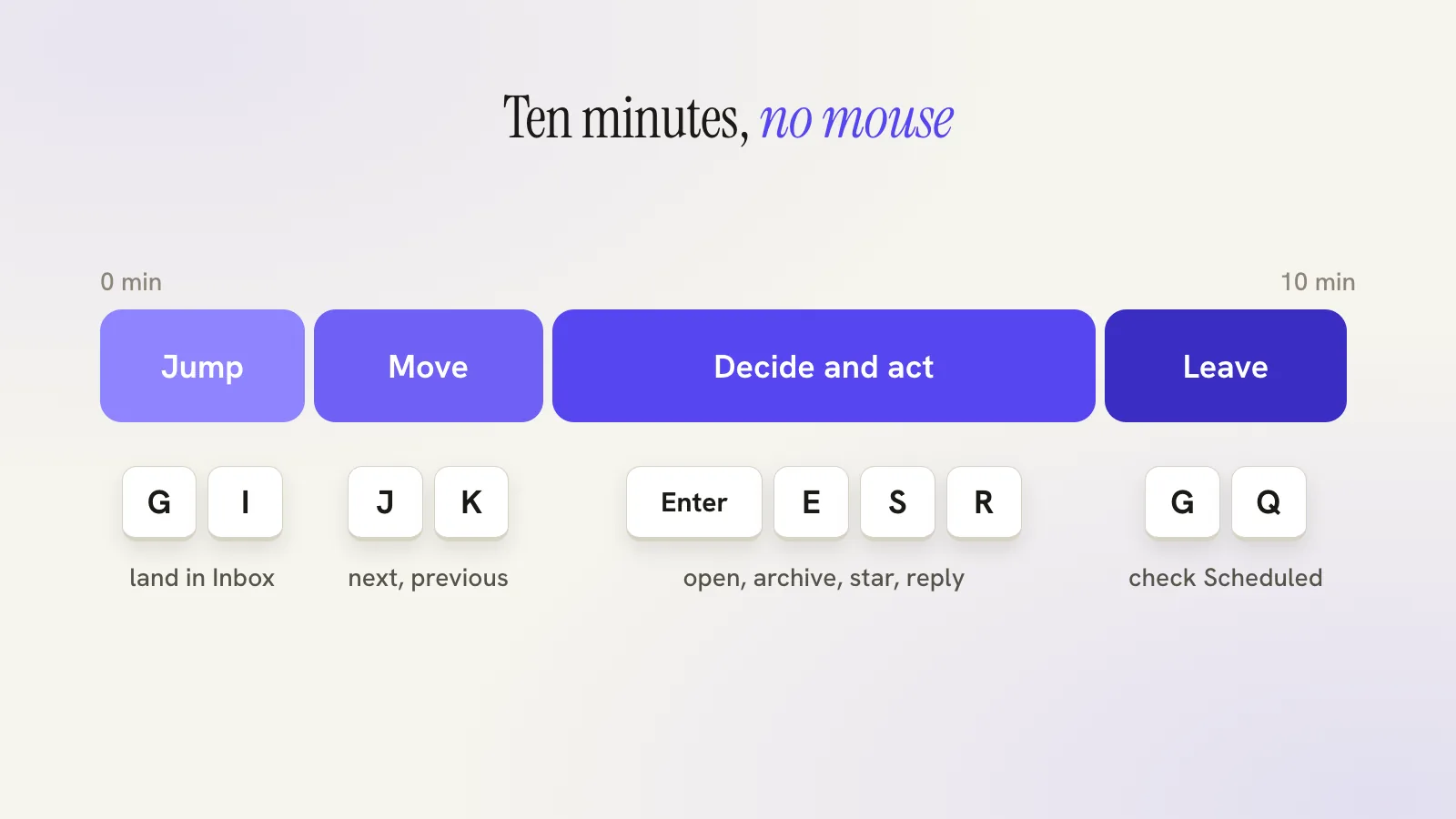
Say you open Otto with about forty minutes of mail waiting and ten minutes to spare.
Press G then I to land in the inbox. Press J to move to the first message and Enter to open it. A note from Maya at Studio Luma asks about invoice 2041. It needs a reply, but not this minute. Press S to star it so it stands out later, then K and J to move on.
The next one is a receipt. E archives it. The next is a newsletter. E again. Open the next, a short question you can answer in a line. Press R, type the reply, send it.
Priya has forwarded something you need to know about but not act on. U marks it read. Another message is plainly junk, so # sends it to Trash.
Press G then Q to check Scheduled, where snoozed threads and follow-ups collect, so you know what is waiting and nothing is lost. Close the tab. Total hand movement to the mouse: none.
Use the assistant for what keys cannot do
Keys are best at one message at a time. When the job is bigger, press ⌘J and say it.
"Archive every newsletter from the last quarter." That prepares a bulk change and shows you a card with the scope, which you read and approve once. "Reply to this and say I will join." That drafts a reply for your approval. Between them, the keyboard handles the individual decisions and the assistant handles the weight.
The other surfaces have keys too. In the calendar, D, W, M and A switch to day, week, month and agenda, T jumps to today, J and K or the arrows move through periods and C starts a new event. In Tasks, J and K move, X or Enter completes, E edits, # deletes and N adds one. In Notes, N starts a note, D a drawing, M a Markdown note, / searches and ⌘S saves.
Honest limits
Zero is a nice feeling and a poor goal. An empty inbox can still hide four broken promises, because archiving removes a message without answering it. Use the keys to make decisions quickly, and give the threads that need work a task, a follow-up or a calendar slot instead of hoping you will remember.
Some shortcuts only act when an email is open, and some only when their surface is on screen. If a key does nothing, check where focus is first. While you are typing in a field, bare letters type, as they should, and ⌘ combinations such as ⌘K and ⌘J still work.
Superhuman built its name on keyboard speed, and it has a native Windows app that Otto does not have. If a native desktop client is the deciding factor for you, read the comparison before you choose.
Learn four keys this week
Do not memorize the list. Pick J, K, E and R and use only those for a week. Then add S and the G sequences.
Free to start, and the keyboard layer is included. The keyboard-fast triage guide has the keys in one place, or open Otto, press ⌘/ and try them on your own mail. For a routine to hang them on, see a 10-minute morning email routine.
Questions, answered
Where do I see every shortcut?
Press ⌘/ (Ctrl and / on Windows and Linux) or ?. The cheat sheet lists every shortcut by group and always matches what the app does.
Do the shortcuts work on my phone?
No. They are for a hardware keyboard on desktop. On a phone you tap, and the assistant can do the same work when you ask.
Can I use the keyboard for the calendar and tasks too?
Yes. The calendar has D, W, M and A for views, and the task list uses J, K, X, E, # and N. They work when that surface is open.
Try your next step in Otto
Core mail, calendar and tasks are free. AI has an allowance.
Open Otto