Delegate your day.
Build a Gmail filter you can check first
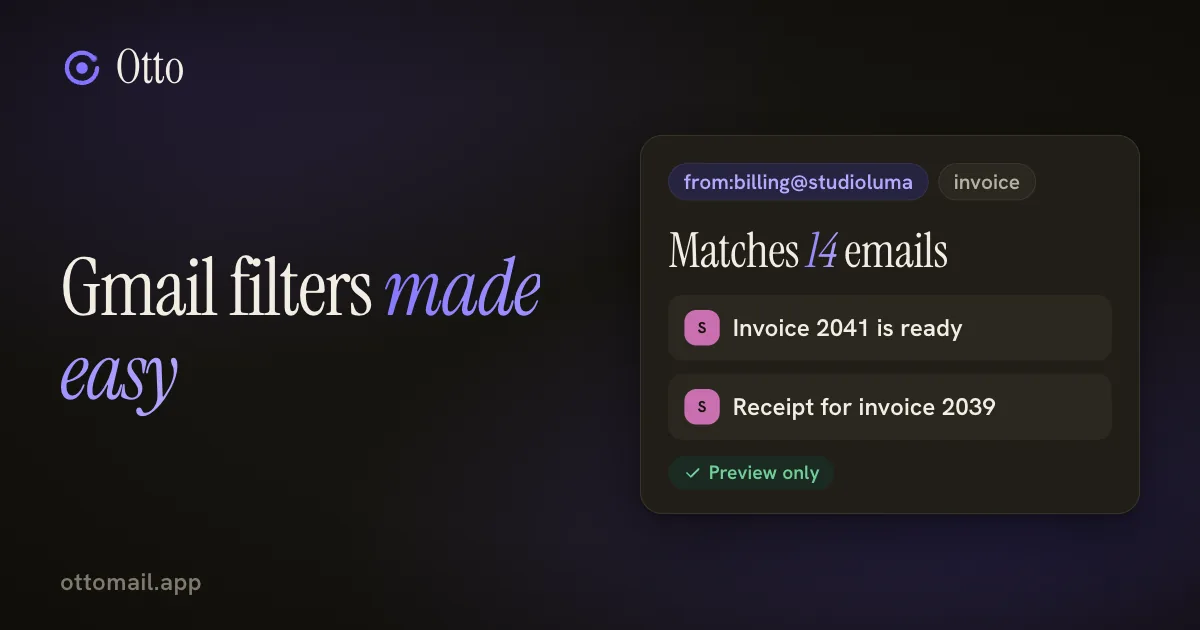
Most filter mistakes are guesses. A live preview turns the guess into something you can read before it touches your mail.
You just approve.
The short version
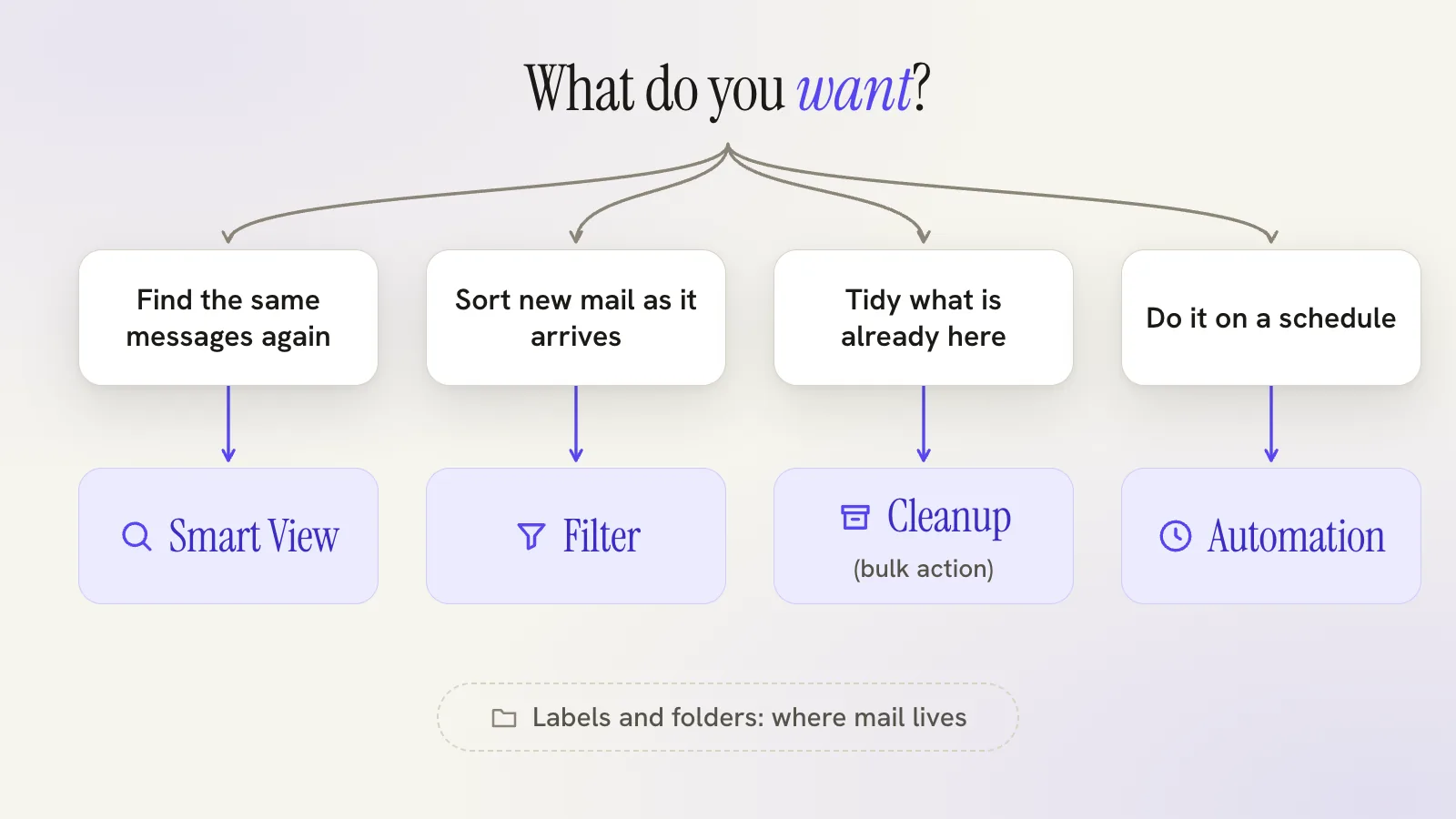
- Labels organize, saved views remember a search, filters act on incoming mail, rules and cleanups handle the rest.
- Otto's filter builder previews what your conditions would match, live, before you save anything.
- A filter acts on new mail. Tick Also apply to existing emails only when you want the past tidied too.
- Filters and one-off rules are free. Check provider differences between Gmail labels and Outlook folders.
Four tools that sound like one
People say filter when they mean any of four different things, and then wonder why the thing they set up did not do what they expected.
Labels and folders are where mail lives in your provider. They organize. Gmail labels can overlap, so one message can carry several. Outlook folders work differently.
Smart views save a search. You find the same messages again with one click. They do not move or change anything.
Filters run on incoming mail, using the conditions and actions your provider supports. They are the "from now on" tool.
Rules, cleanups and automations are the rest. Otto rules act on incoming mail within one mailbox. A cleanup processes mail that is already there, using the bulk-action flow with visible progress. An automation runs a digest or cleanup on a schedule.
Pick by the question. Want to find the same mail again? Smart view. Want new mail sorted as it arrives? Filter. Want the old mail tidied? Cleanup. Want it on a calendar? Automation.
Why a preview changes everything
The classic filter mistake is a condition that is slightly too broad. You write "from the accountant" and discover it caught the personal thread with the same accountant. You find out three weeks later.
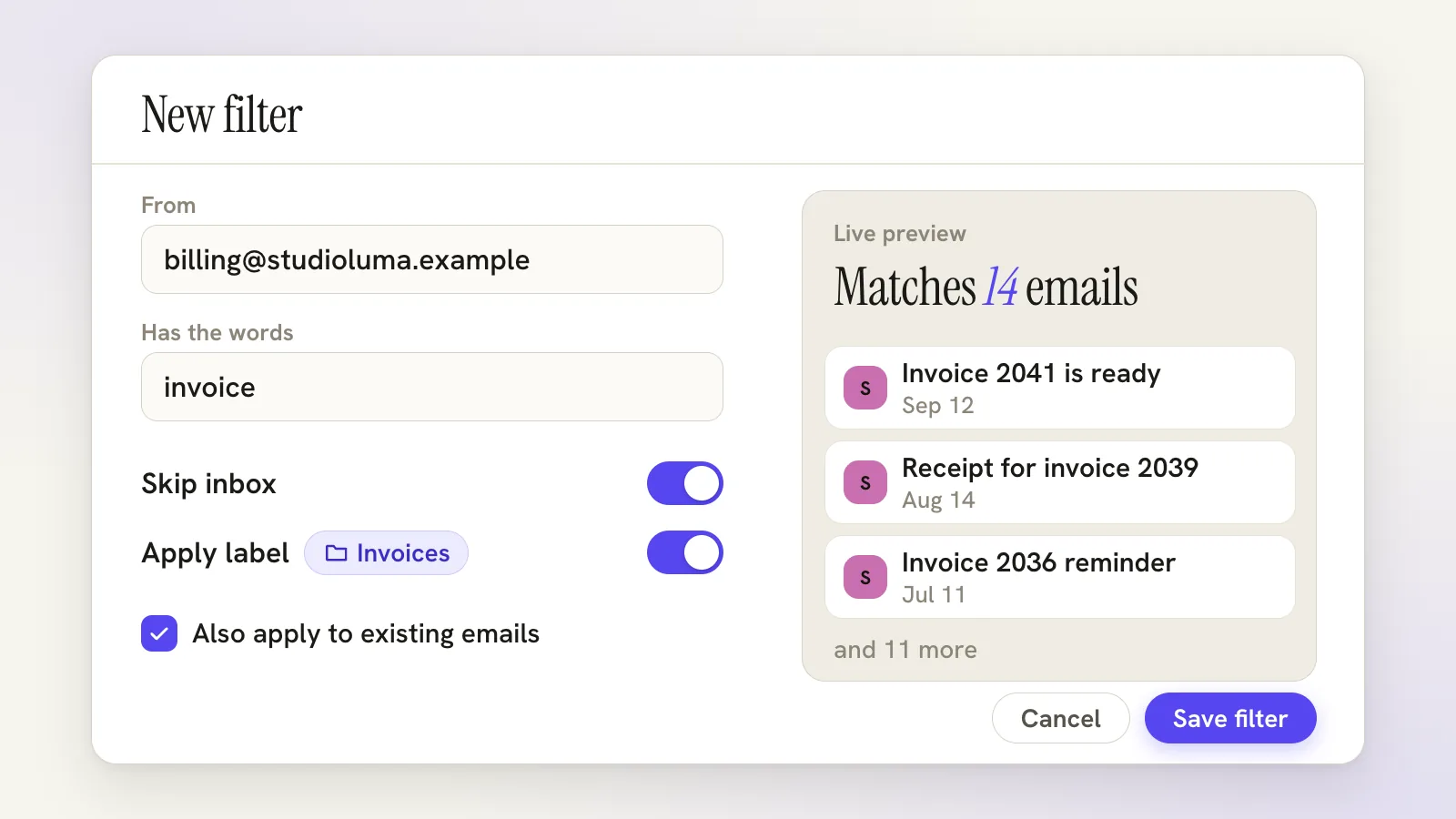
Otto's filter builder shows what it would match while you build it. Set a condition and a count and a sample of real messages appear beside it, live, before you save anything. If the sample includes something you did not expect, tighten the condition and watch it change.
The conditions cover From, To, Subject, words it has and words it does not have, attachments and size. You can also exclude chats.
A walkthrough: invoices from Studio Luma
Say invoice mail from Studio Luma keeps landing in your inbox, and you want it labelled and out of the way.
Open Settings → Automations and start a new filter. Set From to the billing address and Has the words to invoice. Watch the preview. It reports a count and shows a sample, and you spot a thread from Maya that is not an invoice at all. So you add a word to Doesn't have, and the count drops.
Now choose what to do. Apply the label Invoices. Tick Skip inbox, which archives it. You could also mark it read, star it, mark it important, or tell Gmail never to send it to spam. Choosing Delete it is possible, and it is the one to think twice about.
There is one more checkbox that deserves a pause: Also apply to existing emails. Without it, the filter only touches mail that arrives from now on. With it, the past is tidied too. For a first filter, leave it off, save, and watch what happens to the next few messages. Turn it on once you trust the match.
Filters can also forward matching mail, but only to a verified address.
Before you save, read the preview one more time. It is the cheapest review you will ever get: a list of real messages that your filter is about to touch. If it shows five messages and you expected five, you are done. If it shows five hundred, you have just saved yourself an afternoon.
Filter, saved view, or quiet the sender
Here is the test. If you want mail to be handled, use a filter. If you only want to look at it, use a saved view.
Say you want unread mail from finance in one place, but you still want it in the inbox. A saved view does that. Otto can create one for you: "create a saved view for unread mail from finance". Or search, then pin the search as a Smart View in the sidebar.
Saved views are safe because they change nothing. Filters are powerful because they do.
A good order for a new inbox: start with a saved view for anything you only want to look at, add filters for the senders you are certain about, and use a cleanup for the backlog. Add an automation only when you find yourself doing the cleanup every month.
Sometimes the right answer is neither. Where sender screening is enabled on Plus, you can allow, quiet or Hide in Otto an exact sender. Hiding takes the mail out of Otto's primary inbox and its new-mail alerts, but it does not block delivery, archive, trash or mark anything read in Gmail or Outlook. All Mail and search still find it, and you can undo the choice.
For mail you are done with entirely, use the message's unsubscribe action when the sender provides one. That asks the sender to stop. It does not delete what has already arrived.
Limits worth knowing
A filter is only as good as its conditions. The preview shows a sample, so read it, and keep an eye on the first few real matches.
Gmail and Outlook are not the same. Gmail categories and Important markers are not Outlook folders, and filter actions, label and folder management and search-wide actions depend on what each provider supports. Otto should not offer a choice a provider cannot carry out, and if an action is unavailable it says so.
Explicit rules stay in charge. Otto's learned memory does not silently replace a rule you wrote.
Large changes to existing mail go through the bulk-action flow. Read the scope on the card before you approve.
Build one filter today
Pick the sender that clutters your inbox most. Build the filter with the preview open, save it without touching existing mail, and check the next few arrivals.
Free to start, with filters and one-off rules included. The labels, saved views, filters and rules guide lays out the choices, the bulk actions guide covers cleanups, or open Otto and build the first one. To put a cleanup on a calendar, read inbox automations.
Questions, answered
What is the difference between a filter and a saved view?
A filter acts on incoming mail in your provider. A saved view, called a Smart View in Otto, only remembers a search so you can return to it. It moves nothing.
Can I preview a filter before I save it?
Yes. Otto's builder shows a live preview of what your conditions match, with a count and a sample, while you set them.
Do filters work the same on Outlook?
Filter actions, folder management and search depend on what each provider supports, and Otto does not offer choices a provider cannot do.
Try your next step in Otto
Core mail, calendar and tasks are free. AI has an allowance.
Open Otto